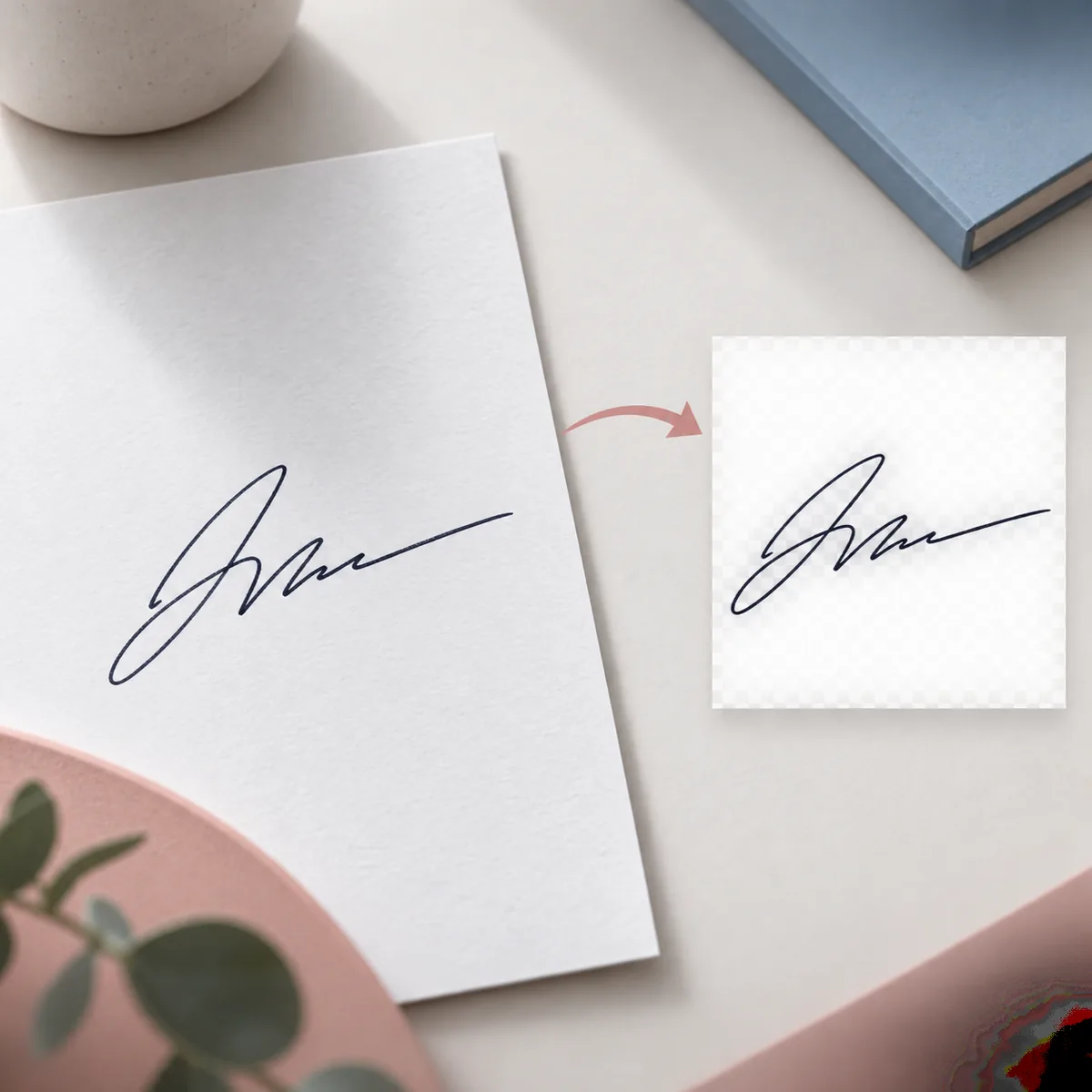
Turn a photo or scan of an existing handwritten signature into a clean transparent image without carrying the paper around it.
·9-minute read
The simplest way to remove background from signature images is to start with a clear photo or scan, separate the visible ink from the paper, inspect thin strokes against transparency, and export a PNG. Our signature background remover handles the image cleanup, while this guide explains how to prepare the file, judge the result, and use it safely in Word, PDF, email, or design work.
A clean source image makes it easier to separate handwritten ink from paper texture and shadows.
What signature background removal actually does
A photographed signature is more than dark handwriting on a page. It can contain paper fibers, gray scanner tone, a desk shadow, camera glare, ruled lines, or a colored cast from the room. Removing the background means isolating the visible ink and making the surrounding pixels transparent. The goal is a reusable signature image, not a newly drawn signature.
This distinction matters when you search for a way to remove background from signature files. A general background remover may understand a person, object, or product better than a thin line on paper. A signature-focused workflow needs to protect loops, crossings, dots, pressure variation, and pale edges while removing the page around them.
It isolates an existing handwritten signature image; it does not create a new signature.
It can remove paper, gray scan tone, soft shadows, and ordinary image noise around the ink.
It should be reviewed visually because faint strokes and glare can be mistaken for background.
Prepare the photo or scan before you remove the background
The remover can only preserve detail that exists in the source. Before you upload, choose the clearest image you have and avoid editing the signature so tightly that the first or last stroke touches the edge. A little breathing room helps you judge whether the transparent result has clipped a loop or created a rough halo.
Black or blue ink on a light page is usually easier to separate than pale ink on gray paper. If you are taking a new photo, flatten the page, use even light, and keep the camera parallel to the paper. A phone shadow, bright glare, folded paper, or dark desk can become part of the background signal and make review harder.
Source condition
What to do
Why it helps
Dark ink on light paper
Use the original image and start with balanced cleanup.
The ink and paper have a clearer tonal difference.
Blue or thin ink
Keep the whole signature visible and inspect small loops.
Light pressure changes can disappear when cleanup is too strong.
Gray scan or ruled paper
Use the photo/scan mode and compare the edge at 100%.
Lines, page tone, and ink need to be separated carefully.
Glare, folds, or desk shadow
Retake the photo if possible; otherwise keep the original for comparison.
Reflections can overlap with pale strokes and create false edges.
Remove the background from a signature in four steps
Once the source is ready, the practical workflow is short. The important part is not pressing a button repeatedly; it is using the comparison state to decide whether the visible ink still looks like the original. If an image has delicate handwriting, start with the least aggressive cleanup that gives you a clean page around it.
1
Upload one photo or scan
Open the tool, choose a JPG, PNG, or WebP file, and wait for the preview. Drag and drop, file browsing, and camera capture are available where the browser supports them.
2
Choose the closest cleanup mode
Use Auto for a typical paper photo, Fine Ink for light or narrow strokes, and Photo / Scan for uneven paper tone, ruled lines, or a soft cast shadow.
3
Compare Original and Transparent
Move the before-and-after divider or use its keyboard controls. Check the first loop, crossings, dots, last stroke, and any pale line that was visible in the original.
4
Download the transparent PNG
When the result looks usable, select Download Transparent PNG. Keep the original image nearby and review the signature again after inserting it into the final document.
Transparency can make a result look clean while hiding small problems. Check the signature over both a light and a darker surface if your editor allows it. A white background can hide leftover paper; a darker background can reveal a pale rectangular haze, rough edge, or missing light stroke.
Compare the result with the original at a useful zoom rather than judging only the thumbnail. Look at the beginning and end of the signature, tight loops, crossings, dots, and places where the pen pressure becomes thin. If the signature is intended for a contract or invoice, make sure the visible shape has not been simplified so much that it no longer matches the source.
Inspect on a light background for leftover white or gray paper.
Inspect on a dark background for jagged edges, halos, and missing pale strokes.
Compare the final shape with the original before using it in an important document.
Do not treat the preview as identity verification or legal approval.
Use the transparent signature PNG in Word, PDF, email, or design files
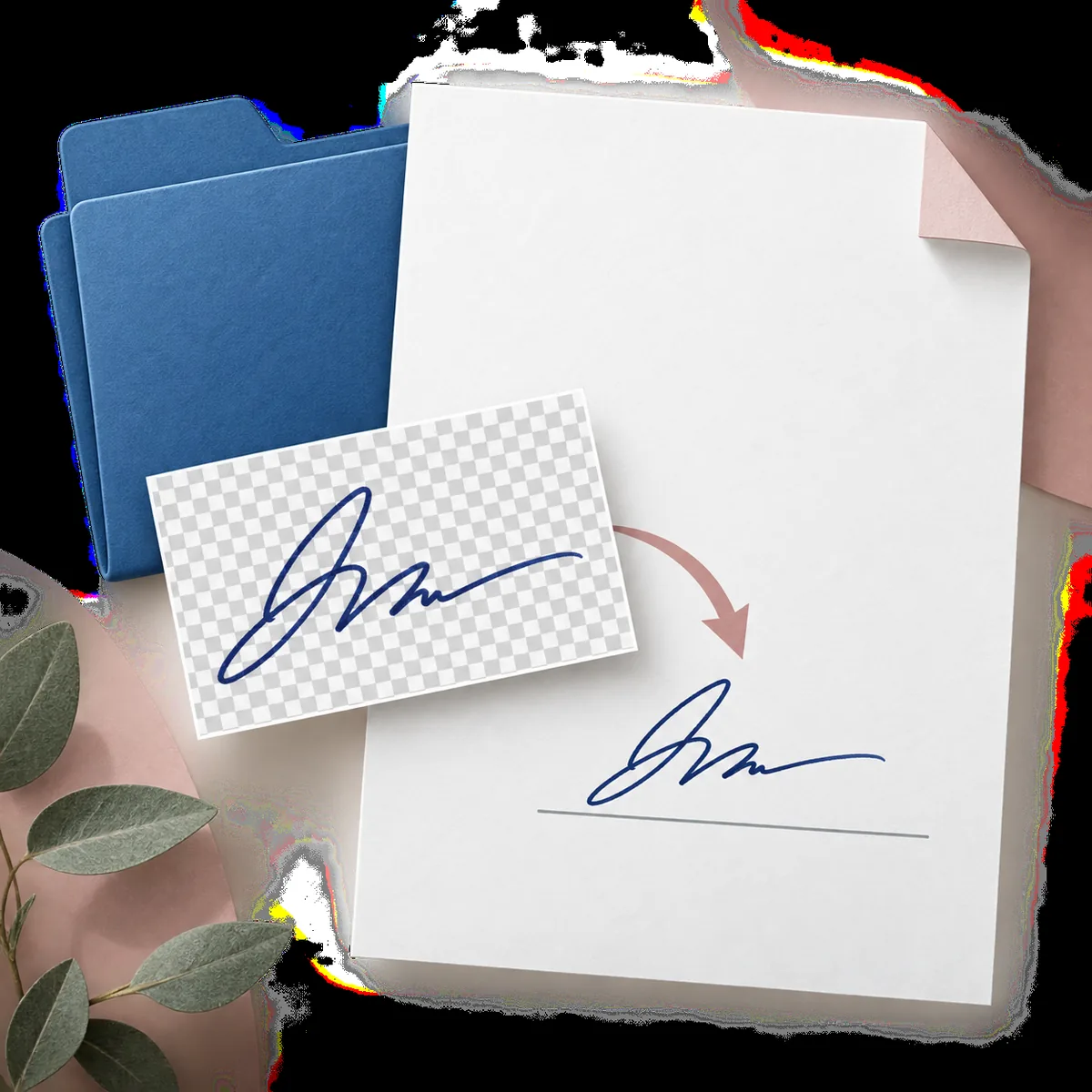
The value of removing a paper background is that the signature becomes a flexible image layer. In Word, insert the PNG as a picture, resize it from a corner, and use the document’s layout controls to place it over the intended line. In a PDF editor, add the image as a graphic or stamp-like object and confirm that the page does not show a white rectangle around it.
For email signatures and design files, keep the image at a sensible display size. Enlarging a small phone photo can expose blur even when the background is transparent. If the signature will be reused, store the original and transparent versions together, and use a filename that identifies the ink color or source scan rather than overwriting the original.
A transparent signature PNG can be positioned over a document without carrying the original paper rectangle.
Privacy, retention, and what this tool does not promise
A signature image can be sensitive even when it is only being prepared for a draft. The selected file remains in the browser until you submit it or remove it. When you submit, the image is sent through the configured processing path so the service can produce a result. The site does not intentionally write the submitted image into account, order, or usage tables, but the configured provider may create temporary upload files, task records, or result links needed to complete processing.
Read the site Privacy Policy before uploading anything covered by an organization’s confidentiality rules. Keep a local copy of the original, avoid uploading a document that contains unrelated private information, and use a cropped signature image when that is enough for the task. These habits reduce unnecessary data exposure without pretending that online processing has no provider or network step.
Upload only the image needed for the background-removal task.
Keep the original source and review provider retention details in the Privacy Policy.
Use a separate signing or approval system when a document requires identity, audit, or consent controls.
Remove Background From Signature: Common Questions
These answers cover the practical questions behind transparent signature images, supported files, document workflows, privacy, and the difference between image preparation and electronic signing.
Can I remove the background from my signature for free?
You can upload a supported image and review the workflow before downloading. Sign-in and available processing credits may be required to complete a result, so check the current homepage and pricing page for the active allowance.
Can I make a signature transparent online?
Yes. Upload a clear photo or scan, choose a suitable cleanup mode, compare the Original and Transparent states, and download the PNG when the visible strokes still match the source.
Why should I use PNG instead of JPG for a signature?
PNG can preserve transparent pixels around the ink. JPG stores a rectangular background, which can produce a visible white box when the signature is placed over a colored page or design.
Does it work with a photo or scanned signature?
Yes. JPG, PNG, and WebP photos or scans are supported up to 10 MB on the current homepage tool. Clear contrast, even light, and a complete crop make the result easier to review.
What if the signature has a white paper background?
Start with a clear image and use the comparison view to check for leftover paper. A white page can hide a pale haze, so also inspect the result over a darker background before downloading.
Quick checklist for a clean signature PNG
Use a sharp, well-lit photo or scan with visible ink and space around the full signature. Upload one supported image, choose a conservative cleanup mode, and compare the original with the transparent result on more than one background. If the edges and thin strokes look right, download the PNG and keep the original beside it.
The best result is not the most aggressively cleaned image; it is the one that keeps the visible handwriting recognizable while removing the paper around it. For Word, PDF, email, and design workflows, treat the PNG as an image asset and keep identity, consent, approval, and legal signing steps in the system that owns those responsibilities.